Lusus

Neufreistadt

Neufreistadt in Second Life, on SL-Inspiration

Neufreistadt is a very well constructed location in Second Life that is a pleasure to visit, offering many opportunities for photographers. For the casual traveler there is everything here, from residences, shops, an art gallery, a monastery and more.

Another feature that makes this location distinctive is it's role in the Confederation of Democratic Simulators. As its website explains;
The Confederation of Democratic Simulators is the oldest democracy in Second Life. Originally founded in 2004 as the City of Neualtenburg in the Anzere region, the Confederation of Democratic Simulators (C.D.S.) is now a five-region community operated by the citizens.
The CDS also has a Facebook page which along with it's website gives a good overview of all the activities on the sim.

Download The Jigsaw Puzzle

The above image I took whilst visiting Neufreistadt and used to create one of my Droste images (see the tutorial here on how to create a Droste image to see the result). I also thought I would share this picture as a jigsaw puzzle that can be downloaded for you to keep and play on the PC. Simply click here to download the zipped file and then double click the jigsaw icon once unzipped.

Your Own Image As A Jigsaw Puzzle

If you have a Second Life image you would like to share as a jigsaw then full details of how I can do this are included in the pdf document included with the download.

This jigsaw puzzle is a little challenging so grab a coffee and set aside around an hour to work on it, and enjoy.

Read More
Lusus

How To Add A Random Page Button To A Blogger Blog


After adding a random page button to this blog and to another I help to run, The Chilly Bear  I was asked a few times how to do this. So in the hope this will be useful I have decided to write this tutorial on how to add a random page button to a blogger blog.

Creating the Graphic For The Random Page Button

Firstly I should point out I am not a scripter so I didn't incorporate the button graphic into the javascript, but used the work around described here. If anyone knows how the graphic could be embedded into the script please add a comment below.

To create the button graphic you'll need to know the width of the sidebar on your blog where the button will appear. To find this:


1/ Open your Blogger Dashboard and on the blog you want to add the button to, click on the small arrow to the right of the blog name to reveal the drop down menu (highlighted in red above). Select Template.


2/ Click the Edit HTML button to view the blog template. 


3/ You'll need to view the blog's CSS file which will tell you the width of the sidebar. If you can't see the CSS of the blog find this line towards the top of the template:
<b:skin>......</b:skin>
then click on the triangle by the template line number (see image above).


4/ scroll down the blog CSS until you find a line similar to the above. As you can see in this example the width of the sidebar is 312px.

All CSS files are different for each blog template, so the line may appear differently for you, but there should be a line showing the width of the sidebar for your blog.

Now the we know the width of the sidebar we can begin to create the button graphics. Open your graphics software, select New then for the width of the graphic enter the width of the sidebar, and the height you want your graphic to be.

If you don't want your random page button to take up the full width of the sidebar, start with a transaparent layer and centre your button when you create it. When you export your graphic make sure it has an alpha channel so the background remains transparent.

You can be as creative as you like with the appearance of the button. Since the Chilly Bear is a Second Life club and music themed blog the button I created for it is a record label, (the image at the top of the page).

Once you have created the button graphic upload it to an image hosting website, such as Photobucket. You will need the code for direct layouts later.

Adding the Random Page Script To The Template

To create the random page button you will need to add a script to your template. Before you edit your template remember to create a backup by going to your template page and clicking the Backup/Restore button to the upper right.

1/ Copy the script Below:
<script type='text/javascript'>
/*<![CDATA[*/
function showLucky(root){ var feed = root.feed; var entries = feed.entry || []; var entry = feed.entry[0]; for (var j = 0; j < entry.link.length; ++j){if (entry.link[j].rel == 'alternate'){window.location = entry.link[j].href;}}} function fetchLuck(luck){ script = document.createElement('script'); script.src = '/feeds/posts/summary?start-index='+luck+'&max-results=1&alt=json-in-script&callback=showLucky'; script.type = 'text/javascript'; document.getElementsByTagName('head')[0].appendChild(script); } function feelingLucky(root){ var feed = root.feed; var total = parseInt(feed.openSearch$totalResults.$t,10); var luckyNumber = Math.floor(Math.random()*total);luckyNumber++; a = document.createElement('a'); a.href = '#random'; a.rel = luckyNumber; a.onclick = function(){fetchLuck(this.rel);}; a.innerHTML = 'Random Post'; document.getElementById('mbl-random').appendChild(a); } </script><script src="/feeds/posts/summary?max-results=0&alt=json-in-script&callback=feelingLucky">
/*]]>*/
</script>
2/  Go to your template page and click on the Edit HTML button to view the template.

3/ Scroll to the bottom of the page and just above the closing </body> tag paste the script.

4/ Save the template.

 Adding The Random Page Button To Your Blog

1/ To add your button, go to the Layout page of the blog and Click on Add A Gadget for the Sidebar.

2/ Select a HTML/Javascript widget and paste this into the window:
<div class='box'>
<div class='random page'>
  <div id='mbl-random'/>
<style type='text/css'>
#mbl-random a{
  display: block;
width:width of the button graphic;
height: height of the button graphic;
background: URL(url of the button) no-repeat 0 0;
font-size: 0px;
  }
</style>
</div>
</div>
3/ Replace 'width of the button graphic' with the width of your button in px. This should match the width of the sidebar.

4/  Replace 'height of the button graphic' with the height of your button.

5/ Replace 'url of the button' with the url for direct layout of the uploaded graphic.

6/ Click Save.

Your random page button should now appear on your blog

Troubleshooting

Because all templates are coded differently it may be that your random page button only appears on the home page of the blog. If this is the case you can make it appear on all pages by creating a widget for the button in the template.


1/ Open your template again and scroll down to where you see a line similar to the above, highlighted in red.


2/ Scroll further and you should see a search widget and as well as others, such as a social profile widget.

3/ Normally a random page button would be placed below these widgets, so when you scroll just past them add the following:
 <!--Random Page Widget-->
<div class='widget-container'>
<div class='random-button-widget'>
widget text
<div class='clear'/>
</div>
</div>
 Replace 'widget text' with the code you added to the sidebar widget when editing the layout.

5/ Save the template.

4/ Delete the widget you originally created when editing the layout.

Your random page button should now appear on each page.

Having a random page button on your blog can be very useful for bringing forward older posts that visitors may still find interesting, but were otherwise hidden among the numerous other posts you may have. It can also help to keep people on your blog for longer. If you find this tutorial useful then why not share it with friends.


Read More
Lusus

How To Create A Droste Effect With A Second Life Image


Second Life photographers experimenting with the Droste effect is not something I have come across before so it was intriguing to see what was possible and how this technique could be applied to an image taken in SL.  Needless to say the Second Life image could be replaced with a real photo although this may involve a little more preparation for the photo used.

For this tutorial I use Gimp but it is also possible to create Droste images with Photoshop. If you prefer to use Photoshop you will need the Pixel Blender Plugin. For Gimp users you will need the Math Map Plugin.

What Is The Droste Effect?


If you are new to Droste images then a little explanation may be useful. The name Droste is taken from a Dutch Cocoa company whose packaging showed an image of a nun carrying a tray with another cocoa carton showing the nun carrying the same tray. That tray also has a carton showing the nun carrying the tray, and so on. In short, the Droste effect is an image appearing within itself again and again.

Installing The MathMap Plugin 

Before we begin to create a Droste image using Gimp you'll need to install the MathMap plugin. You can find the download link above. If you're using Windows 7 and above with Gimp 2.8 you may find that your first attempt to install the MathMap plugin was unsuccessful as it instals to a default Gimp 2.6 folder. To make sure it is installed correctly:

Download the plugin using the link above. During the instal process, change the directory from "C:\Users\your name\.gimp-2.6" to  "C:\Users\your name\.gimp-2.8". Start up Gimp and you should find the plugin under Filters > Generic > MathMap.

If after doing this MathMap still hasn't installed correctly then you can manually move the MathMap plugin files from the 2.6 plugin folder to the 2.8 plugin folder. Then move the mathmap folder to the 2.8 folder.

Creating The Droste Image


Now that the MathMap plugin is installed (hopefully without too much trouble) we can start creating a Droste image. The first thing you'll need is a good Second Life image. I took this picture at Neufreistadt - a very picturesque location and a good place for Second Life photographers to visit.

When you take your snapshot it is a good idea to make it as large as possible because the process of creating the Droste effect tends to produce a smaller finished image. The size of this picture was around 3060 X 1266 px. A wide image as above is also recommended.

1/ Open your image in Gimp and do any editing you want such as cropping etc.

2/ Right click on the image in the layers panel and select 'Add Alpha Channel' from the drop down menu.This is so we can autocrop the image later.


3/  Select Filters > Distorts > Polar Coordinates. This will open another small window as below. Make sure your settings are the same as in the image with 'Map from top' unchecked.


4/ You should see something similar to the above image in the Polar Coordinates window. Click 'OK' and then select Image > Autocrop Image.


5/ Now Select Filters > Generic > MathMap > Map > Droste (see above).


6/ You should now see a window similar to the image above. Under the User Values tab there are plenty of options to play with, but the principle sliders to create your Droste effect are the Inner Radius and Outer Radius sliders. The Periodicity slider is also useful as well as 'TilePoles' and 'DoNot FlattenTransparency'.


7/ The best way to create an image that appeals to you is to experiment. The image above shows the settings I used in this example, although as you'll discover the settings will be different for each image. Once you are happy with your image click 'OK'.


The example Droste settings shown above result in this image which I then cropped  a little and overlayed a few grunge textures just to add more character. This picture reminded of a Medieval manuscript image so one of the textures I added gave it the appearance of old creased paper. The final result of all this is the image at the top of the page.

There are a number of variables when creating Droste images and I have shown just one way of producing them. It may be that the image you used didn't suit this particular way of creating a Droste effect, and if this is the case you could try ticking the 'Map From Top' box when opening the Polar Coordinates window.

You could also try cutting a transparent hole in a section of your image to see what effect that has as well as playing with the 'StartingLevel', 'LevelFrequency' and the 'Strands' sliders in the Droste window. 

Another variable is to skip the polar coordinates step and just use the MathMap plugin - this works best when you create a transparent hole in part of the picture.

If you would like to see more of my Droste images you are very welcome to visit my gallery spaces at Timamoon Arts and the Avalon Art Centre, or you can view them on my Marketplace store, (if this link doesn't take you straight to the Droste images on the Marketplace, close the window and click on it again. There is a bug in the wires somewhere). I hope you enjoy creating your own Droste images and hopefully sharing them in Second Life.

Read More
Lusus

How to Upload A Blogger Template

How to upload a blogger template

As we all know there are numerous Second Life Residents who have a blog relating in some way to their SL experience, so if you are considering starting your own blog the first thing you'll need is a template that makes your blog stand out.

The kind of template or theme you choose for your blog will largely depend on the subject. For instance, if the blog is going to be mostly picture orientated then perhaps a theme aimed at photographers may be approproate. On the other hand, if your blog is going to have more of a magazine feel, then there are plenty of magazine or newspaper templates available.

You may already have noticed that Blogger has a series of themes for you to start off with, but in my opinion it is much better to upload one from a website that specialises in designing Blogger themes -  a quick Google search will bring up many places you can download templates from. These templates tend to look a lot more professional than the generic Blogger themes, and they are often designed for use on mobile devices so your blog can also be viewed on the go.

Once you find a template you like you'll need to download it onto your hard drive and unzip it. If you don't have software that can compress/uncompress files try 7-Zip , its free.

Uploading A Template

Once you have decided on a title for your blog and have covered all the preliminary steps in Blogger it is time to upload your selected template.

How to upload a blogger template

1/ Sign into your Blogger Dashboard then to the right of the blog name click on the down arrow (see area highlighted in red above), then from the drop down menu select Template.

How to upload a blogger template

2/  In the top right of the new page that opened there is a Backup / Restore button. Click on this.

3/ A small window will now open. Click on the browse button and navigate to the Blogger template on your hardrive and open it.

How to upload a blogger template: Backup / Restore window

4/ The Backup / Restore window will now look similar to the above with the name of the template to the right of the Browse button. Click on Upload.

Thats all there is to it - as soon as Blogger has finished uploading the template it will be live on your blog, and if you haven't done so already you'll be ready to start adding posts.

Quick Tip On Changing Templates

Once you see a template on your blog you may decide its not quite what you're looking for and you may decide to upload quite a few before you find the template thats right for your blog. If you do upload a number of templates it is much better to go back to a default blogger theme and delete as many widgets as possible inbetween uploads. 

The reason for this is that you will accrue far too many widgets on your blog and you will lose track of which widget belongs to which template. Also, uploading one template after another can sometimes affect how they look on your blog.

Read More
Lusus

How To Create A Neon Sign Using Inkscape

neon sign
This is a simple tutorial which will hopefully be a good introduction to anyone new to Inkscape, although it does assume some familiarity with the more common Inkscape tools. Although a neon sign can be made in other software such as Gimp, one of the advantages of using Inkscape is that you do not have to decide the final size of the image until you have completed what you are doing, as we will see.

Creating The Neon Sign

1/ Open Inkscape and resize it to fit your screen. Press '5' so that the page area fits the Inkscape window.

2/ Select the text tool to the left of the window (F8) and type the text for your neon sign.

How To Create A Neon Sign Using Inkscape

3/ From the Command Bar select the Font tool ( Shift >Ctrl >T) to choose the font for your sign and the font size. From the window that opens (see image above) select the font and font size you want to use.

The font selected for this tutorial is called Neon 80s that I downloaded from Fontspace, a website with a good selection of free fonts.

After you have decided on your font and font size click  Apply.

4/ Choose the colour for your font from the palette at the bottom of the Inkscape window. Then hit Ctrl>D to make a copy of the text object.

5/ The copy of the text object will be above the original, and we are going to use this copy to create the highlights of the neon sign. We do this by first changing the colour to white, then selecting Ctrl>Shift>( which will inset the text.

To get the highlight looking just right you may need to hit Ctrl>Shift>( a few times. Be careful however not do this too many times because the result will become unpredictable and you will need to restart this step.
How To Create A Neon Sign Using Inkscape
6/ Once you are happy with the highlight bring up the Stroke and Fill panel by hitting Shift>Ctrl>F. Now using the slider add a little blur to make the highlight more realistic, (see image above).

7/ The text of a neon sign appears to glow, so we will create this effect by adding another copy of the original text object and then, instead of using the Inset tool (Ctrl>Shift>( ), we will use the outset tool.

8/ To make a copy of the original text object make sure it is selected and then hit Ctrl>D. You may need to zoom in to make sure you have the right object selected.
How To Create A Neon Sign Using Inkscape
9/ Send the copy to the back of the other objects by hitting the Page Down key a few times. Now use the outset tool to expand the object by hitting Ctrl>Shift>) a few times, until you are happy with the appearance of the object, (see image above).

10/ Hit Shift>Ctrl>F  to bring up the Fill and Stroke panel again, and use the blur slider to make the object seem like the glow of the text layer. In the example here a blur of around 5 was used.

11/ All the neon sign needs now is a background, so select the box tool from the Toolbox to the left of the Inkscape window (or hit F4), and drag your cursor over the neon text until you have a size that suits you.

Give it a black fill, then send it to the back of the objects by hitting the Page Down key a few times. The neon sign is now complete, and we just need to export it as a bitmap.

Exporting the Neon Sign

How To Create A Neon Sign Using Inkscape

To export the neon sign,  select File>Export (or Shift>Ctrl>E) and in the window that opens you will see you can choose the size of the image to be exported, see image above). Once you have chosen the size for your image hit the Export button.

neon sign in Second Life

If your sign is to be used in Second Life, all you need to do now  is upload the image and add it to a prim. The above image shows the sign created here placed in my gallery close to the cinema, which I hope shows how effective Inkscape can be in creating neon signs, particularly when used in Second Life.
Read More
Lusus

Creating Textures With PatternCooler

Creating Textures With PatternCooler

The free online Patterncooler software created by Harvey Rayner is a remarkable tool for creating seamless patterns to use as backgrounds on blogs, web and graphic design projects, wallpapers, and of course textures for Second Life.

Getting Started

Because Patterncooler offers so many variations, it can be difficult to know where to get started, so after clicking the centre of the screen to open the Patterncooler interface, the best option seems to be to select a texture thumbnail at random and experiment.

Once you see how this works, you can also click on the 'Show color variations as thumbs' tab, which will allow you to edit the colours of the texture in the main window.

The Pattern Spread App

Creating Textures With PatternCooler

Patterncooler allows another way to work with textures other than the method above. Next to the Patterncooler logo is a white inverted arrow. Hover your cursor over this and from the drop down menu select Pattern Spread App. You will then be presented with a number of galleries of textures. Once you have selected a texture to work with, a window similar to the image above will open.

Under the Pattern Spread App, each texture is constructed of a number of layers of patterns. Each layer can be edited and new ones can be added and existing ones removed, by using the '+' or 'X' buttons next to each pattern. It is also possible to edit the size of each pattern on the texture as well as its colour values.

Registering With Patterncooler

Another option offered to users of Patterncooler is to register with the site, which will enable you to save projects and come back to them later as well as adding them to the gallery. You will also be able to view what textures you have downloaded, which all helps to make this app much more user friendly.

One of the remarkable aspects of Patterncooler is that it is free to use and that you can use the patterns you download pretty much as you like. However, depending on what the pattern will be used for, there is an option to pay for each download which allows for a better quality images. Also there is a donate button which I think is worth using considering everything Patterncooler offers its users.

This is a basic run through of what Patterncooler can do, so its worth taking a look and seeing just how useful a tool it is for creating online patterns for blogs and websites, and possibly textures to use in Second Life.

Read More
Lusus

Creating A Cubed Icon Or Logo With Gimp

Creating A Cubed Icon Or Logo With Gimp

If you have a blog, website or a business in Second Life, it is likely you have created an icon or Logo as a way of making it more distinctive. It can be useful to display that icon in a number of ways, so in this tutorial we are going to create a cubed icon or logo with Gimp.

1/ The first step is to load your icon into Gimp. Then select Filters > Map > Map Object.

Creating A Cubed Icon Or Logo With Gimp: select Filters > Map > Map object

2/ The above window will open, and in the drop down list select Box. Also select Transparent Background so we can add our own background to the finished cube. Next click on the Orientation tab.

Creating A Cubed Icon Or Logo With Gimp

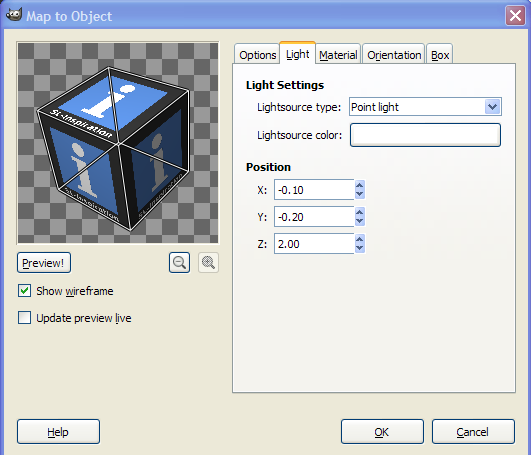
3/ You will see there are sliders so you can place the cube at the angle you want. Experiment with these sliders to get the look that suits you.

You can also see from the image above there is a live update option so you can see what your cube will look like. However, with large image this can take a while to update. Using the wireframe mode is much quicker.

Creating A Cubed Icon Or Logo With Gimp: Using wireframe mode

4/ After adjusting the rotaion of the cube there is another tab that allows you to adjust the lighting. Again experimentation is the best way to find what you like.

Creating A Cubed Icon Or Logo With Gimp

5/ When you are ready click OK and Gimp will create your cube with your icon or logo on each face.

Your cubed icon is complete, although there are further steps you can take to improve its appearance, such as adding a shadow and a background.

Before continuing with the following steps, autocrop the cube layer and export it. Now open a new window in Gimp that is larger than the cube icon image, (you may want to scale the cube image to make it smaller if necessary).

Adding A Shadow

1/ Add the cubed icon image to the new window with File > Open as Layer. Now create a new layer that is transparent and place it below the cube layer.

Creating A Cubed Icon Or Logo With Gimp: Adding a shadow

2/ Using the Paths tool, draw an outline of the cube, clicking with your mouse at each corner to change direction. Hide the cube layer and make the transparent layer the active layer.

Creating A Cubed Icon Or Logo With Gimp

4/ When you have finished select the Edit radial button below the tools icons, and then select Selection from Path. Using the Bucket Fill tool, fill the shape you have created with black. Your finished layer should look something like the image above.

Creating A Cubed Icon Or Logo With Gimp

5/ From the Toolbox, select the Perspective tool. By placing your cursor over the corners of the grid and holding down the left mouse button you will be bale to deform the shape you created until it looks like a shadow for the cube. The shape can be repositioned by dragging the central circle on the grid.

This stage may take a little trial and error, and you can of course use the Undo option if you need to. When you are ready click Transform in the small window (pictured above).

Creating A Cubed Icon Or Logo With Gimp: Completed cube with transparent background

6/ Next go to Filters > Blur > Gaussian Blur and select a blur that suits your image. something like 25 may be a good starting point. Experiment with the Opacity slider at the top of the Layers panel until the layer looks like the kind of shadow you want.

You can of course save your cubed icon as it is, but next we are going to soften the corners on the cube here

Rounding Off the Cube's Corners And Edges

1/ First create another transparent layer and place it above the cube layer.

2/ With the Color Picker tool select the color of the lower right face of the cube (or whatever lower face that has the lightest tone).

3/ Now make sure the new layer is the active layer, and select the Brush tool. Choose a brush size that will suit your image. A little trial and error may be needed, although one with a blurred edge is most useful.

4/ Place the cursor at the bottom corner of the cube and holding down shift drage the cursor up to the top corner of this cube edge.

5/ Repeat this for the top interior edges of the cube but use the Color Picker tool to select the lighter tone of the upper surface. Right click on this layer in the Layers Panel and Merge it with the cube layer.

Creating A Cubed Icon Or Logo With Gimp: Rounding off edges
6/ To round off the exterior corners, select the Eraser tool and gently draw a curve on each corner. Zooming in on each corner makes this easier to do, as well as selecting the right sized brush for your particular image. This should also tidy up any messy bits created by smoothing the interior edges.

Creating A Cubed Icon Or Logo With Gimp: Cubed Logo
7/ When you have finished, go to Filters > Blur Gaussian Blur and choose a blur radius that will suit your image. Click OK and if necessary you can make this layer less opaque by using the slider at the top of the Layers panel.

Creating A Cubed Icon Or Logo With Gimp: Cubed logo with background

Your cube should now have rounded corners and smooth edges. All that needs to be done now is to add a background. In the example here I used the Blend tool to create a gradient of the foreground and background colours by holding and dragging the cursor from the bottom to the top of a new layer, then placing it below the other layers.

Creating a cubed icon or logo using Gimp takes just a few steps, and from there each person can decide on whether to add rounded edges and a background. This tutorial has also introduced those quite new to gimpt to a number of uses for some of the tools in Gimp.


Read More
Lusus

Builders Skybox

Builders Skybox for Second Life

Having somewhere private to build in Second Life is pretty much a necessity for many content creators, and a builders sky box is a good way of achieving that.

This Builders Skybox can be rezzed at a chosen height either temporarily on say a sandbox or permanently on your own land.

If you intend to use this skybox on a sandbox you’ll need to find one that allows scripts, and whilst many sandboxes have blocked them to cut down on griefers, there are still some out there with scripts enabled.
A few examples include Cordova and Columbia. Cordova does appear to attract a number griefers, but the skybox rezzed at height will put you out of reach of all but the most fanatical of them.

If you don't already have your Builders Skybox you can get it from the Marketplace. 

Rezzing The Builders Skybox

Positioning the sky box is quite straightforward:

1/ First place the rezzer box on the ground in front of you. The arrow shows the direction the skybox will rez. The skybox will rez in the direction of the arrow and a few metres behind it. The rezzer will of course be inside the skybox when it is rezzed.

2/ Note: The grid guide of the sky box is aligned to the X-Y axis, so if you rotate the rezzer box this alignment will be broken.


 3/ Once the rezzer is placed on the ground, click it to sit on it. Now click it again to bring up the menu. Choose ‘SET HEIGHT.’

Builders Skybox for Second Life: Select 'height' from the menu

4/ Now choose the height from the following menu, You can also set your own height by selecting ‘OWN’ from the menu and typing your chosen height in main chat.

Builders Skybox for Second Life: The height menu

5/ You’ll now find yourself sat on the rezzer box at your chosen height (not the most dignified look, but it gets you there).

Builders Skybox for Second Life: Rezzer at selected height

6/ Click ‘REZ’ to rez the sky box and stand. If the position of the box is going to be permanent you can click  ‘DONE’ from the menu which will remove all scripts. Otherwise you can leave the rez box as it is. If the skybox's position is going to be permanent, don't forget to set a Landmark so you can teleport to it.

Builders Skybox for Second Life: Skybox interior

Removing the Builders Skybox

To remove the sky box, sit on the rezzer again and click it for the menu to appear. Now select ‘DELETE’.

To return to the ground select ‘HEIGHT’ then select your own height of around 30m. Anything less than that and the rez box may end up half buried in the ground. Once at ground level stand from the box and delete it (you’ll have a copy of it in your inventory).

 Configuring the Teleporters

If you are going to leave the Builders Skybox permanently rezzed on your land you will probably want to configure the teleporters so you can use both the inside of the box as well as the roof space. A useful hint before you start is to make sure your chosen co-ordinates aren't too close to the edge of the Builders Skybox, so you won't accidentally teleport outside of the box.

1/ Place the location finder that came with the Builders Skybox, where you want to land when you teleport to the inside of the skybox. Click the location finder and you will see in main chat the co-ordinates of the box.

Builders Skybox for Second Life: Configuring the teleporters

2/ Copy the co-ordinates by dragging your cursor over them, right clicking and then selectiing 'Copy'

3/ Use your camera to view the teleporter on the roof. Right click on it and select edit. Under the contents tab find the configuration notecard and double click it to open it.

Builders Skybox for Second Life: The teleporter notecard

 4/ Paste the co-ordinates you copied between the < > brackets (deleting the co-ordinates already there). Click 'Save'

5/ Right click on the location finder, select 'Edit' and move the box to the roof. Leave edit mode and click the location finder box. The co-ordinates for teleporting to the roof will be shown in main chat.

Builders Skybox for Second Life: setting the second teleporter

6/ Copy and paste these co-ordinates to the configuration notecard of the teleporter inside the Builders Skybox. Click 'Save'.

Your teleporters are now ready to use. If you want to, you can say '/12 LOCK' to lock the co-ordinates into the teleporters. This means they cannot be changed, (an extra pair of teleporters are provided in case you lock the scripts and later change your mind).

 Using The Advertising Boards

On the outside of the Builders Skybox are a couple of ad boards. To use them, simply drag an image texture onto the front of each one. Then replace the notecard inside of each ad board with your own notecard. Now your Skybox acts as free advertising for you. 

Whenever anyone clicks on the ad boards they will recieve your notecard. (It has to be said that if your skybox is rezzed at height not too many people will get to see the ad boards but they are there on the principal that all advertising counts.

Thats all there is to setting up your Builders Skybox. I hope you enjoy this item and find it very useful. As always, feel free to contact me if you have any further questions relating to this item.


Read More