Lusus

How To Hide Share Buttons On A Blogger Homepage

In a recent post I mentioned how to add share buttons for Second Life related social networks to Blogger, and I also mentioned in passing that not all Blogger templates hide the standard share buttons on the homepage. If this is the case with your blog, then this quick tutorial will explain how to hide the share buttons on Blogger, so that they only appear on a blog post.

Before making any changes to a template it is strongly recommended that you download a backup. If you don't know how to do this, then the earlier post linked to above will explain how. Now just follow these steps:

1/ Sign into Blogger then select Template then Edit HTML.


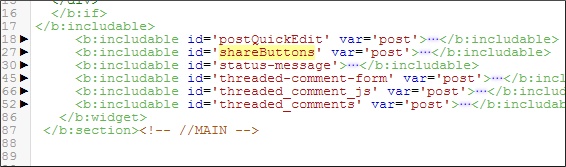
2/ click inside the template area, then hit Ctrl >f to bring up the search window. Now search for ShareButtons. You should see something similar to the above.


3/ Click on the black triangle to the left of the ShareButtons line to reveal more code. Place your cursor after the closing bracket of the ShareButtons line and press Enter to create a blank line.

4/ Copy the line of code below then paste it into the blank line you created.
 <b:if cond='data:blog.pageType == &quot;item&quot;'>

5/ Scroll down to the end of the share buttons code and you'll see it ends with '</b:includable>'. Create another blank line just above this and paste a closing
</b:if>
statement. Save your template and you are done. The share buttons should now be hidden from your blogger homepage and should only show on each blog post.

Hiding the Second Life Social Network buttons

If you have added the share buttons for the Second Life related social networking sites, you may want to hide these from the homepage too. To do so follow this extra step:


6/ Paste the code for the social networking buttons in the space you created for the closing '</b:if>' tag (the code can be found on the earlier tutorial linked to above). Now paste the closing '</b:if>'  tag directly after the code for the Second Life buttons. Save your template and all the share buttons should now only show on each blog post.

Editing a template can seem a little daunting, but so long as you have a backup of the original no lasting damage should be done, so feel free to give this tutorial a try.
Read More
Lusus

Share Buttons For Second Life Social Networks


Blogging about Second Life is a popular activity, especially for residents who have a defined interest in-world such as the arts, music and fashion etc. Along side this there are some prominent social network platforms that cater specifically for online 3D worlds, although for some reason it is not as easy to connect the two in the same way it is with, for example Facebook where share buttons are now part of the norm for any blog.

Although no platform owner has yet developed share buttons that enables blog readers to add their favourite content to these social networking sites, there is a work around. The idea is simple. Buttons placed are on a blog, much like Facebook, Twitter and Google+ buttons, and when clicked a small pop-up window appears so readers can quickly add the page to their Second Life social network site of choice, without leaving the blog. To get a better idea how these buttons work click on the ones at the bottom of this page.

There are two ways to add these share buttons to a blog. The first is the much simpler method of adding them to the sidebar and the second is to add them to the blog template where they will automatically appear in each blog post.

Adding The Share Buttons To The Sidebar


To add the buttons to your blog follow these steps:

1/ Sign into Blogger and then click on Layout for your blog.

2/ Drag your cursor over the following code then right click on your mouse and select copy.
<table>
  <tr>
    <th style='border:none: width:100%;'>
 <a href="#" onclick="window.open('http://avatarbook.org', 'newwindow', 'scrollbars=yes, toolbar=yes, width=700, height=600'); return false;" rel='nofollow'>
                        <img alt='Avatarbook' src='http://i65.tinypic.com/5wjdxz.jpg' style='padding-left:-5px; padding-right:3px' title='Share to Avatarbook. Opens in a new window'/>
                      </a>
<a href="#" onclick="window.open('http://www.avatarsocialnetwork.com', 'newwindow', 'scrollbars=yes, width=700, height=600'); return false;" rel='nofollow'>
                        <img alt='Avatar Social Network' src='http://i63.tinypic.com/10frr14.jpg' style='padding-right:3px' title='Share to Avatar Social Network. Opens in a new window'/>
                      </a>
<a href="#" onclick="window.open('https://sl-space.com', 'newwindow', 'scrollbars=yes, width=700, height=600'); return false;" rel='nofollow'>
                        <img alt='SL-Space' src='http://i66.tinypic.com/eaprh4.jpg' title='Share to SL-Space. Opens in a new window'/></a>
</th>
  </tr>
  <tr>
                        <!--please do not remove this credit -->
<th style='border:none; padding-bottom:10px; font:10px Roboto,arial,sans-serif; color:#666; width:35%'>Created by <a href="http://www.sl-inspiration.com">SL-Inspiration</a></th>
  </tr>
</table>
 3/ Now in the sidebar section of the blog layout, select Add a Gadget. In the window that opens select HTML/Javascript.


 4/ Another window will open and in the Content area paste the code, then give it a title if you wish to. Click Save, and the share buttons should appear on your sidebar.

 Adding The Share Buttons To The Blog Template

Before making changes to any blog template it is important to download a backup of the original, so it can be uploaded again later if needed. To do this:

1/ Sign into Blogger again and then choose Template from the drop down menu for your blog.

2/ To the top right of the template page click the Backup/Restore button, and in the Save window that opens give the template a meaningful name and hit Save. Your backup is complete.
.
To add the buttons to your template follow these steps:

1/ Sign into blogger, click on Template, then click the Edit HTML button.


 2/ Click anywhere inside the template window, and then hit Ctrl > f to bring up a search window. Use this window to find this line of code:
<b:include data='post' name='post'/>
As you can see from the example above this code can change from template to template, but search for something similar to the above.

3/ Now drag your cursor over the following code. Hit the right mouse button then select Copy.

                          <!-- SL Social Share Links-->
<table>
  <tr>
    <th style='border:none; width:35%; padding:0px;'>
      <a href="#" onclick="window.open('http://avatarbook.org/links/new', 'newwindow', 'scrollbars=yes, toolbar=yes, width=700, height=600'); return false;" rel='nofollow'>
                        <img alt='Avatarbook' src='http://i64.tinypic.com/9zsytv.jpg' style='padding-right:3px' title='Avatarbook Opens in a new window'/>
                      </a>
                      <a href="#" onclick="window.open('http://www.avatarsocialnetwork.com', 'newwindow', 'scrollbars=yes, width=700, height=600'); return false;" rel='nofollow'>
                        <img alt='Avatar Social Network' src='http://i63.tinypic.com/2h6ykx1.jpg' style='padding-right:3px' title='Avatar Social Network. Opens in a new window'/>
                     </a>
                      <a href="#" onclick="window.open('https://sl-space.com', 'newwindow', 'scrollbars=yes, width=700, height=600'); return false;" rel='nofollow'>
                        <img alt='SL-Space' src='http://i64.tinypic.com/2d9z8qv.jpg' title='SL-Space. Opens in a new window'/></a>
</th>
 <th style='border:none; width:55%; font:11px Roboto,arial,sans-serif; color:#666; padding:0px; '>Share to SL social networks</th>
  </tr>
                        <!-- please do not remove this credit-->
  <tr>
<th style='border:none; padding-bottom:10px; font:9px Roboto,arial,sans-serif; color:#666; width:35%'>Created by <a href="http://www.sl-inspiration.com">SL-Inspiration</a></th>
  </tr>
</table>
                          <!-- SL Social Share Links ends-->
 4/ If you want the share buttons to appear above each post content then paste the code above the line you searched for. For the buttons to appear below each post, paste below.

5/ Save the changes to your template and the buttons should now appear on your blog.

As all blog templates differ, it may be that your blog has more than one b:include data='post' name='post' line of code. If the buttons do not display in the correct place on your blog you may need to search for a second b:include data='post' name='post' in your template and add the share buttons script there.


 Displaying the Share Buttons Only On Blog Posts

Many templates will not show the standard Facebook, Twitter and Google+ share buttons on the blog homepage. If this is the case with your blog and you would prefer for the SL share buttons not to show on the homepage also, you will need to find the following line of code:
<b : include id='sharebuttons' var='post'>
1/ Once you have found this line you should see a black triangle to the left of it. Clicking it will reveal more code.


2/ Scroll down until you see this:
<data:post.dummyTag/>
Paste the SL share buttons code after the closing </b:if>.

3/ Save the template and the buttons should now appear after each post but not on the homepage.

 A final Note

As we have already mentioned, blogger templates can differ and it may be that the buttons appear more clustered on your blog than they do below. If this is the case try tweaking the width percentages in the first two lines that begin with
<th style='border:none.....
Increasing the percentage will give more room to the line you edit, but keep the total of both percentages to around 90%. Leave the third <th style='border:none..... exactly as it is.

Adding buttons for Second Life related social networks is easier than you may think, and can help to increase not only your readership but also the exposure of your favourite  social platforms. If you like this tutorial then why not share it! Also, check out our new SL-Inspiration Facebook page...we appreciate each 'like' we recieve.
Read More
Lusus

Creation Park


Creation Park is the brainchild of Barbie Alchemi set up to to raise donations for the  Michael J Fox Foundation for Parkinson’s Research, with the added aim of offering support groups and research into the positive effects of Second Life for people with Parkinson’s Disease.

If you think this all sounds very serious, well it is, but at the same time Creations Park has so much to offer visitors, including a dance club, a tropical beach, boutiques, horse riding and much much more. As well as all of the above, Creations Park is a beautifully crafted place to visit with lots of opportunities for Second Life photographers to take great shots.

The best way to discover more about Creation Park is to visit the location in Second Life by clicking on the link above, and exploring it for yourself. Also, watch the Drax Files video below (or watch it on YouTube) which explains so well what the Park is all about. 

If you would like to find out more about Parkinson’s Disease and to make a donation directly, then you can visit the Team Fox website.


The Creation Park Jigsaw Puzzle

Whilst visiting Creation Park I took the image at the top of the page and turned it into a jigsaw puzzle for you to download and keep. Simply click here to download the zipped file containing the jigsaw and then double click the jigsaw icon once unzipped. The file is stored on Google Drive so you can be sure it is safe to download. Enjoy solving the jigsaw puzzle and don’t forget to pay Creation Park a visit.

Your Own Image As A Jigsaw Puzzle

If you have a Second Life image you would like to share as a jigsaw then full details of how I can do this for you and host the link on this blog are included in the pdf document included with the download.

This jigsaw puzzle is a little challenging so grab a coffee and set aside around an hour to work on it, and enjoy.
Read More
Lusus

Managing Your Fonts With NexusFont


If you create logos or graphics for your Second Life business then you will often have to use fonts. Sooner or later, the more fonts that are used the more difficult it is to keep track of them, so having font manager software can save a lot of frustration. There are many font managers available, some paid for and some free, but the most useful I have found is called NexusFont.

NexusFont is a small and free application that will allow you to keep on top of your collection of fonts. One of the most difficult aspects of creating a design can be selecting the right font, but the time spent on this can be reduced dramatically with NexusFont because it enables you to sort fonts into folders and compare them.


Adding fonts to a folder is easily done:

1/ Right click on the font you want to add.


2/ Select Copy to Folder.

3/ From the drop down menu either select a folder name that's displayed, or select Browse.


 4/ When Browse is selected a window similar to the above will open. From here navigate to the folder you want to copy the font to.

Now each time you need to choose a font for a specific project you can use the folders as a guide to compare similar fonts. Fonts can also be copied to different folders if they fall into one or more styles.

Tracking Previously Used Fonts

Another time consuming aspect of using fonts is finding a font that has been used on an earlier project. If for instance a font was used on a particular logo some time ago it can be difficult to remember exactly what font was used for that design, and there can be little to jog the memory, except to run through all of your installed fonts..


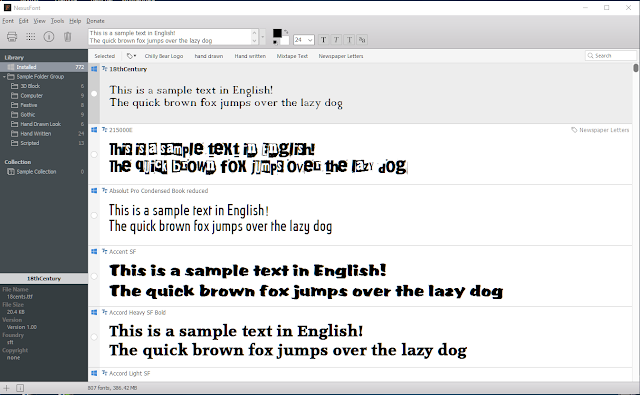
However, in NexusFont a font can be given a number of tags. The example above shows the font used for the Chilly Bear Club logo, and it has clearly been tagged as such.

To add a tag to a font:

1/ Right click on the font in NexusFont, then select Edit Tags from the drop down menu.


2/ A window similar to the above should open. Type the tag name into the space provided and select either the Add or Replace options, depending on whether you want to keep or replace any existing tags.

3/ Click OK and thats it.

To find a tagged font simply use the search window to the upper right of the NexusFont window. So long as you give a font a tag thats relevant to the design it was used for, it should be easy to find when you need to.

NexusFont has a number of other useful features to help you manage your font collection, but the ones briefly summarised here will help you to get started and will probably be the ones you'll use most often. As mentioned earlier NexusFont is free to download and use with no annoying trial periods or nag screens, so why not give it a try.


Read More
Lusus

Creating Glitch Art With Second Life Images


One of the current trends in digital art is the intentional corruption of image files to simulate interferences, or a broken image. Rather than throwing one's arms in the air in frustration at a corrupted file, glitch art embraces these errors and turns them into art. This is of course possible to do with images taken in Second Life, and if you'd like to turn your preciously refined snapshots into a different kind of art form thats all the rage, then follow this tutorial on creating glitch art with Second Life images.

Audacity

To create your glitch art you will first need a snapshot saved as a BMP file and edited to your liking. Secondly you'll need to install Audacity, which can be downloaded for free by following the link. Although Audacity is an audio editing software it works well for opening BMP image files and using its features to add errors to the image.


I took the above image at The Great Fissure in Second Life, which I then cropped and tweaked a little in Gimp. Once you have downloaded Audacity follow the steps below. You can click on the pictures to see full size.


1/ Start up Audacity then select File > Import > Raw Data.


2/ Navigate to the BMP image you want to use then select Open. In the window that opens (see above), select U-Law from the first drop down menu and Little-endian from the second. Now click Import.


3/ The image will appear in Audacity as if its an audio file, and if you want you can press the play button to listen to it (it will probably sound terrible). Drag your cursor over part of the 'audio' wave (highlighted in red), avoiding the beginning as this contains important information that allows the file to be opened.


4/ Now click on the Effect menu and from the drop down list select one of the editing options. There is some trial and error here to find which of the Effects options creates distortions to the image that you like.


6/ In this example Change Pitch has been selected and in the opening window shown above I randomly played with the settings before hitting OK.


7/ Drag your cursor over another section of the 'wave' to select another part of the file, and then select another option from the Effects menu. In this example Wahwah was chosen. When you have tweaked the settings hit OK again.

8/ Select random parts of the file and then select other options from the Effects menu. Its probably best not to do this too many times to begin with, until you have an idea how the image will be affected. There will be some trial and error involved, although the whole process doesn't take too long, so creating new images from scratch if you need to isn't too time consuming.


9/ When you are ready, select File > Export and the window above will open. Name your file and give it a BMP extension, highlighted in red. Navigate to the folder where you want to save your image and click Save.


12/ If everything has gone to plan you should see a window as above. Click Yes.


13/ The above window will now appear. Click OK and your image will be saved to your PC.


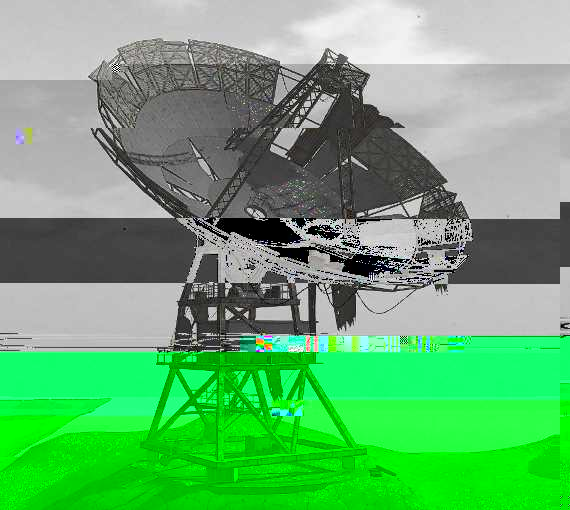
This is how the image from Audacity looked when I saved it to my PC. Sometimes when you try to open the image in Window's image viewer it may not recognise the file. If this happens try opening it in Gimp or Paint and saving it again, maybe as a PNG file. Sometimes unfortunately you'll just have to start again.

Snorpey.github


Using Audacity is not the only way to create Glitch art. In fact there is an online resource at http://snorpey.github.io/jpg-glitch which can be used to further work on an image after exporting it from Audacity, or the website can be used by itself. The above image shows the Audacity image after being worked on further at Snorpey.


Using the website is quite intuitive. First you'll need a PNG or Jpeg image to upload (not a BMP file this time), and then its a matter of adjusting the four sliders above the image to get the result you want. There is also a Randomise button to experiment with.


Once you have finished editing the image hit the download button and then click on 'download bitmap file', to save it to your PC.


The above image shows the same subject edited entirely on  Snorkey without using Audacity. Although the website is very effective and easy to use, the end results are different to what Audacity produces, so it will be a personal choice what you use and whether you mix and match both approaches.You may also find Snorkey has a limit on uploaded file sizes.

Thats all there is to creating your own glitch art, so have fun experimenting with your Second Life snapshots and if you feel like it do share them with me online.
Read More
Lusus

Merry Christmas Jigsaw Puzzle


As a way of wishing everyone in Second Life and beyond a Merry Christmas and a Happy New Year I have created a festive themed jigsaw to download and keep. Once its downloaded just unzip the file, double click on the jigsaw icon and you're ready to solve the puzzle. The puzzle is stored on Google Drive, which you'll be pleased to know scans files before they're downloaded, so you know all downloads are safe.

Click the link above to receive your puzzle. Merry Christmas and a Happy New Year!

Read More
Lusus

Creating Animated Gifs With Second Life

In a recent post I described how to create animated gifs for Second Life and how to add them to a prim. In this follow up tutorial I will explain how animated gifs can be made using the basic features of Second Life. The results can be very similar to those created in 2D or 3D software, but will take just a fraction of the time.

What you choose to turn into an animated gif is really up to your imagination, but I have chosen to use for this example a quite simple item constructed out of a number of flattened and hollowed cubes, designed to imitate an animated gif that might be created in 2D software.

There are two principle ways of generating animated gifs in Second Life. The first is to use the lightweight and easy to use program called Gifcam. The Second is to use video capture software and Gimp with its GAP plugin.

If you need to, you can click the images here to view full size.

GifCam


Gifcam is a very handy free utility that will create an animated gif from any movie or animation on your screen, and is very easy to use. You can get the software here. Once you have set up your creation in Second Life ready to turn into a gif, follow these instructions.


1/ Start up Gifcam and it should show on top of your Second Life viewer. Hold down the left mouse button and drag the edges of Gifcam's image window to frame the item you have created.


2/ Click the down arrow to the right of the Rec button and select a frame rate for your animation, (see image above).

3/  Click the Rec button to start recording your gif. Try to start and end at the same place in the animation of the object to allow smooth looping of the final gif animation. 

4/ Click the Rec button again to stop recording.


5/ Click the down arrow next to the Save button to see save options, and select what you feel is best for your gif animation. As this example is mimicking the optical illusion of flat white squares rotating I have selected Monochrome, but if you aren't sure what to select stick with Quantize.

6/ Click Save, name your gif and Gifcam will start to process your animation. Once its finished your gif will be created and saved to your hard drive. You can view it before uploading it to the web with Quicktime.

7/ If you are happy with your animated gif then you are finished, but if you feel it needs tweaking Gifcam has a few built in options.


8/ Click the down arrow next to the Rec button and select Open and load your gif animation. Now click the Edit button. A new window looking similar to the above will open. Don't worry if all the frames in your gif look green here.

9/ Using the slider to the bottom of this window you can scroll through the frames of your animation. If you want to delete some frames from the beginning scroll through to the last frame you want to delete. 

10/ Right click your mouse and from the drop down menu select Delete From This Frame To Start

11/ To delete frames from the end of the animation scroll through to the first frame you want to delete, right click on your mouse again and select Delete From This Frame To End. These two steps are a quick and easy way of ensuring your animation loops seamlessly.

12/ Now save your animation again and you are done.

Alternative Method

As you can see creating animated Gifs with Gifcam is quick and easy although there are a few downsides. The finished animation may not be as crisp as you'd like, and if you intend to add it to a prim face in Second Life this will become more obvious, since gifs tend to run slower once added as media on a prim.

The alternative method is more involved but on the whole produces better quality gif images. There are three stages to this method:
  • Capturing the animation. For this you will need video capturing software such as Fraps. Its not free but is relatively inexpensive.
  • Video converting software. You will need to convert the video captured in Fraps to an MP4 file. The best free option I have found for this is WinX Video Recorder.
  • Converting the MP4 into a gif animation. For this you will need Gimp installed, along with the GAP plugin, which can be downloaded here.

Capturing The Animation

1/ Position your camera in Second Life ready to begin capturing the animation or scene (or whatever the subject of your gif is).

2/ Start up Fraps and hit the F9 key on your keyboard to begin capturing. Press F9 again to stop recording.

3/ Your video will automatically be saved to your hard drive. You can now close Fraps.

Converting The Video


1/ Start up WinX Video Converter and then click the Video button to the top left. Navigate to where your video is located on your PC and open it. WinX should now look something like the image above.

2/ You can tweak the quality of the converted video by adjusting the slider in the smaller window. When you are ready click OK. Now hit the Run button. It shouldn't take too long for WinX to convert your video to an MP4 file.

Converting The MP4 File To An Animated Gif


1/ Start up Gimp, and assuming you have the GAP plugin installed select Video > Split Video Into Frames > Extract Videorange. A window similar to the above image should open.

2/ Click on the button to the top right and navigate to your MP4 file and open it.


3/ Click on the Video Range button and the window will extend as above. Move the slider at the top right of the window all the way to the right. If a window opens offering you the libavformat option click OK to accept.

If your MP4 is quite large it may take a while for all of the frames to be loaded, so its best to be sure they are all there before moving on. You'll be able to tell because of the number of frames. If it seems low, wait a while.

4/ Set the Audiotrack option to zero.

5/ Click the button just to the right of Basename and navigate to a folder where all the frames of the animation will be stored. Its a good idea to create a folder specifically for this before you begin.

6/ To the right of the window tick the Loop and Selection Only boxes.

7/ To the top right, just under the slider there is a window that shows the number of frames of the video. To the right of that is a button. Click it so that all the frames are selected. To the top left you should now see the From Frame box set to 1, and the To Frame box set to the last frame.

8/ Click OK.

9/ Now select Video > Frames to Image and wait whilst Gimp proceeds. When this step is complete Gimp will open a new image window and you will see each frame of the video loaded as a layer in the Layers panel.

10/ Since Fraps captures the entire screen the frames will need to be cropped. Drag the Rectangle Select Tool over the part of the image you want to keep, then select Image > Crop to Selection.

Its just as well to keep this step in mind when you're capturing the video with Fraps in Second Life, because if you zoom too closely to the scene or the object the animated gif will be too large, but if you zoom out too much it will be too small.

11/ If the frames are too large you can now scale the image by selecting Image > Scale Image.


12/ You can now view what your animated gif will look like by selecting Filters > Animation > Playback.

13/ If your animation doesn't loop seamlessly you can work out here which frames to delete by using the Step button. The area below the view window will show you what frame is presently being viewed. If this is the frame you want to start on, make a note of it. 

You can follow the same process to find the last frame you want to end with. Both the start and end frames should be a very close match in appearance for the animation to loop well. Once you know the start and end frames, you can delete the layers of the frames you want to get rid of.


14/ Your Gif animation is now ready to be exported. Select File > Export As  and name your animation with a gif extension:
mygifanimation.gif
A window similar to the above will open. Tick the As animation and the Loop forever boxes and then hit the Export button. It may seem as if Gimp hangs at this point, but be patient and it will get there.

Your animated gif has now been created and you can view it in Quicktime before uploading it to the web.


This is the animated gif I created using this method, and it pays to compare it to the gif created with Gifcam. Whilst the shapes are better defined here the white isn't as pure as with the Gifcam example. Also the animation is a little slower.

Adding Your Completed Gif Animation To A Prim

There are pros and cons to both these methods of creating animated gifs. Whilst the first is quick and easy, the second tends to produce a higher quality image. 

If you're not too concerned about image quality and intend to add your gif to a prim face then using Gifcam will probably suit you. However, if you want the best quality gif then using the Fraps and Gimp method is probably better. If this is what you decide then you may find you need to tweak the animation along the way. 

Since gifs can run slower in Second Life you will have to keep this in mind and be prepared to adjust things like frame rates, the delay between each frame and the size of the image. It has to be said there is a certain amount of trial and error to get an animated gif to look just right within Second Life. In the final analysis however, Second Life is a good tool for creating animated gifs, and they work very well on a webpage.
You can see a few more examples of animated gifs I created in Second Life on my other blog, Lusus.art.

Read More
Lusus

Creating Animated Gifs For Second Life

animated gif tutorial on SL-Inspiration

Most Second Life residents have seen scripted animated  gif images of dancing mice or frogs and the such like, and whilst they serve their purpose they can be of poor quality and can cause lag. There is another way however of creating animated gifs for Second Life that bypasses the lag issue, and that is to use media on a prim.

In this tutorial I will show how to create an animated gif using Gimp and how to add the animation to a prim.

Creating The Animation

Before creating a gif animation you will need a short video to convert into a series of images that can be loaded into Gimp. The process of turning the video into a series of images will need movie editing software, but if you have made the video yourself you probably already have software you can use.

If you are going to source a video from elsewhere then you need to be sure you are not in breach of copyright regulations. Having said that Youtube videos are often used for this purpose and there are a number of websites that can be used to transform them into animated gifs. These sites include;

Because I wanted to create a series of arty animated gifs I used software called Whorled which is freeware. Whorled was designed to create animated sacred geometry images but it works very well, at least for my purposes. It also contains the options of saving the animations as avi files or to save each frame as a bitmap.

Using Gimp To Create The Gif File

 Once you have converted the video into a series of images they can be loaded into Gimp.


1/ Start up Gimp and then select File > Open as Layers. Browse to the folder containing the converted video images and select the first. Scroll down to the last image and holding down Shift click the last one. All the images should now be selected. Click Open. All the images should now load into Gimp, which may take a while.

2/ Now that the images are all in Gimp, select File > Export As. In the window that opens give the file a name with the extension gif:
 Myfilename.gif


3/ A window similar to the above will open, and you will need to make the same selections that are shown here. Click Export. Don't worry if Gimp seems to hang at this point because it might take a while for it to create the gif file. Finally, you will have your animated gif file.

Before showing the animated gif in Second Life you will need to find a reliable web host to upload it to. For my animated gifs I uploaded them to Blogger.

Once the gif file has been uploaded, view the page then right click on the image to copy its url. Now click on Copy Image Location from the drop down menu. You will later need to add this to a prim in Second Life.

Adding The Gif Animation To A Prim In Second Life

1/ Start up your Second Life viewer and go to a place where you can build. Rez a cube prim and resize it to your liking.


2/ Go back into edit, and in the edit pane click on Select Face then click on one side of the prim.

3/ Under the Texture Tab click on the dropdown tab which should either show as Materials or Media. You need to have the Media option selected (highlighted in red above).


4/ Under the Media tab select Choose and another window will open. At the top of this window paste the url of the gif image, then click Apply and OK. Your animated gif should now appear on the face of the prim.

Adjusting The Appearance Of The Gif On The Prim Face

You may find the gif image only takes up part of the prim face, but you can change this by altering the horizontal and vertical scales under the Texture tab in the edit pane. A scale of 0.4 worked well for me. You may also need to adjust the vertical and horizontal offset, again under the Texture tab.


If you want to hide the Control Bar and disable navigation and interactivity (which I think looks more professional) you can do this under the Customize tab in the Media Settings window.

This is all there is to adding an animated gif to a face of a prim in Second Life. You will find this method causes much less lag than the scripted method, although it may take a second or two for the gif to appear. Residents will also need to use a viewer that enables media on a prim, and have the option activated.

Creating animated gifs isn't just about having a dancing mouse in your in-word store window, but it is an art form in its own right. Its an area where you can let your imagination run freely and just to prove it Google animated gifs and you will find plenty of fantastic examples.

You can see more of my animated gifs on my other blog Lusus-art.

Read More