Lusus

How To Make an Object Follow a Path In Synfig


Synfig Studio is open source software that is a great tool for beginners looking to make their first 2D animation, as well as more experienced animators. This tutorial will show how to make an object follow a path in Synfig and then how to animate it. Although similar tutorials are already available this one takes the time to explain each step clearly. Also, most other tutorials show the object following a looped path, whereas here we use one that is left open. The two processes are however very similar.

To follow this tutorial you will need a basic knowledge of Synfig, and the animation process. Click all images to view full size.

Draw The Path


1/  From the toolbox to the upper left of the Synfig screen select the Spline tool. For those familiar with many graphics programs the spline tool is very similar to the paths tool, and serves a similar purpose.


2/ With the spline tool roughly draw out the path. To change the direction of the path, click the left mouse button and an anchor point will be added. When you are finished, click on the Transform Tool from the top right of the Toolbox to stop the line following your cursor from the last anchor point.


3/  With the Transform tool left click on one of the anchor points and two handles will appear. Grab one one of the handles and drag it to change that section of the path into a curve. Transform all the anchor points to a smooth curve in the same way.

From the image above you will see the anchor points are orange, and the handles are yellow. If you need to you can reposition an anchor by grabbing it and dragging it to the new position.

Import An Object


4/ Its now time to import the object that will follow the path. Instead of importing an object you can create one in Synfig. Similar tutorials use an arrow to follow the path. If you want to do this draw the outline of an arrow with the spline tool, them fill it with colour. As I wanted an imported object to follow a path for a recent project, I decided I might as well import one here for this tutorial.


In the top left corner of the Synfig screen hit File > Import then navigate to the object on your hard drive. Select the object then click the Import button in the pop up window. The object will now be added to the canvas area, along with its handles. Do not move the object from its present position for now.

Add A Rotation Layer


5/ We now need to add a rotation layer for the object. The lower right of the Synfig screen shows the layers that make up the present animation. Right click on the imported object layer,then select New Layer > Transform > Rotate.  A Rotation layer will be added and handles for the layer will be visible in the canvas area.

Group the Object and Rotation Layer


6/ We want the rotation layer to only influence the imported object, so we'll group them. Select the object layer then hold down Ctrl on your keyboard and select the rotation layer. Click the right mouse button, and from the menu select Group Layer.


The Rotation and Object layers are now contained in a group folder, and if you click the arrow to the left of the group the contents will be shown.

Link Object And Rotation Layers To The Path


7/ Before you begin this part, move the object very slightly so it won't obscure the handles of the rotation layer later.

With the contents of the group folder visible, select the object layer, then then click on the objects' green anchor in the canvas area.


Hold down the Ctrl key and select the rotation layer. Now in the canvas area select the rotations' blue handle. The rotation layers' handles are simpler than the objects handles as it consists only of a green and blue anchor.


With the Ctrl key still held down select the Path layer. Release the Ctrl key and right click on the dotted line of the path, away from the handles. From the drop down menu that will appear select Link to Spline.

All the items are now linked, and the object should move to a position on the line. To further position the object drag the Rotation layers' handles to a position on the path, then drag the object to the same position. Use each items' green handle for this. To rotate the object use the objects' blue handle, rather than the rotation layers' blue handle. (This can be slightly confusing for those new to this process).

Animating The Object Along The Path


8/ Postition the rotation layer handles at the start point of the path, then postion the object to the same place.


Switch to animation mode by clicking the green figure icon below the lower right of the canvas area, so it turns red. The canvas area should now also be framed with a red box.


In the time line area drag the orange marker to the place you want to create the next keyframe. Move the rotation layer handles, and the object to the next part of the path, and the keyframes should be added to the time line. I find it best to add keyframes at the peaks of all the curves on the path, as well as the lower parts of the curves. Continue to this process until you reach the end of the path.

Don't forget you can control the rotation of the object with the blue handle. The rotation will be included as part of a keyframe. If you don't adjust the objects' rotation it will probably flip around a lot in the final animation (see example below).

To check your animation, drag the time line marker to the beginning of the timeline and hit play. You can also use the preview function. You may find the object flies away from the path during parts of the play back. Remove the keyframes where this happens and create new ones until you get a smooth flow along the path.

The timing of the object along the path can be adjusted by repositioning the keyframes on the timeline. Just drag them to the new position. If you reposition keyframes, make sure the objects' keyframes and rotation layers' keyframes occupy the same times along the timeline. For example, if the rotation layer has a keyframe at 1 second, the object should also have a keyframe at 1 second.

Once you are done creating the animation, hit File > Render to export it from Synfig and save it as a video file. This may take a while.

Your finished animation should look something like (hopefully better than) the example below.


If you would like to see what an object following a path looks like in practise, here's a snippet from a project I've been working on.


I hope this tutorial has been useful to you, and if so please 'like 'us and share, and we look forward to you coming back for more.
Read More
Lusus

How To Create A Falling Snow Effect With Gimp


At this time of year there are a lot of winter themed sims in Second Life, many with their own falling snow effects. However, there are still plenty with just snow covered ground. If you're a keen Second Life photographer and want to add your own falling snow to the scenes you capture, then follow this quick and simple Gimp tutorial to find out how.


1/ Start up Gimp and open the image you want to use. The image used here is 1024 X 790px and this influenced some of the numbers used in some of the settings, so bear this in mind and be prepared to be flexible when applying this effect.


2/ Create a transparent layer on top of the image layer and make sure its the active layer. Select the Rectangle Select Tool highlighted in the image above. Hold down the left mouse button and drag out a square in the transparent layer.


 3/ Towards the bottom of the Toolbox there is an option to size the square you just created, highlighted in the image above. Resize the square to 256 X 256px.


 4/ Now using the Bucket fill Tool fill the square with black.


 5/ Now select Filters > Noise > HSV Noise, and a window similar to the above will appear. Use the sliders to get the settings something like the above, then hit OK.


6/ From the Select menu click None, then in the Layers menu click Autocrop Layer. Again under the Layers menu select Scale Layer and a window similar to the above should open. Scale the black square up to the size of the image layer. Here I just used 1024px for both the width and height which works fine. After entering the scale of the layer hit Scale. You will probably now need to use the Move Tool from the Toolbox to align the scaled layer with the image layer.


7/ Now we want to give the snow a sense of falling, so select Filters > Blur > Motion Blur and choose settings similar to the above, although you may need to change them to suit your own image. When you're done hit OK.


8/ From the top of the  Layers Panel select Addition from the Mode drop down menu, which will clear the black from the snow layer, and your snow effect should look something like the above.

9/ We now want to give the falling snow some depth, so create another transparent layer and use the Rectangle Select Tool again to create another square. This time size it to 128 X 128px.  Now repeat steps 3 and 4 using the new layer.


10/ Select Filters > Noise > HSV Noise again, and add settings similar to those in the above image, although adapt them to suit your own image.

11/ Hit Select > None, then Layers > Autocrop Layer and then scale the new snow layer to the size of the image layer. Now add some motion blur to the layer, tweaking the settings so they're not exactly the same as the original ones used earlier.

12/ Align the new layer with the image layer, then select Addition again from the Mode drop down menu at the top of the Layers Panel.


12/ So that all of the snow isn't falling in exactly the same way you can rotate the second snow layer a little. From the Toolbox panel, select the Rotate Tool and a window similar to the above will open. This shows the settings used for the image here, but you may want to tweak them to suit your own image. When you're ready hit Rotate and you're done.


You've now completed this quick and easy way of adding a snow effect to your Second Life image, and no doubt you have quickly realised its easy to adapt the settings to get the effect you want for a particular image. Have fun with this and enjoy creating your wintery scenes.

Read More
Lusus

Christmas Jigaw Puzzle


Its only a few days until Christmas so to help you get into the mood, here is a festive themed jigsaw puzzle for you to enjoy. The image was taken at BuenaVista which is presently festooned with a wintery festive look and offers a number of photo opportunities for the keen eyed Second Life photographer.

The jigsaw puzzle can either be played on this page, or it can be downloaded to keep and solve offline. If you would like your own copy, you can download the puzzle here. The downloadable version is stored on Google Drive, which checks for nasty content so you can be sure its safe.

 If you prefer to solve the jigsaw puzzle here, just drag each piece in place and connecting pieces will snap together. To the bottom left of the puzzle there's an opton for a background ghost image, and another to view the image in a small window. Towards the bottom right there is an option to play full screen.

There are lots more jigsaw puzzles here, and if you enjoy them, keep up to date with all we do on our Facebook  page
 

We wish you all a Merry Christmas!


Read More
Lusus

Free Desktop Wallpaper Calendar


The new year is almost here and we all like to have calendars to mark special days and events, so here at SL-Inspiration we have an early Christmas gift for you, a free wallpaper calendar to download and keep. The calendar has lots of features, with images from Second Life to brighten up your PC. You can even create your own calendar to print, as well as add important days and events. Below explains some of what your calendar can do, so read on, take in some of the calendar pics then download your free calendar here.  The file is stored on Google Drive so you can be sure it is free of anything nasty!

Installing The Calendar


To install the calendar first follow the download link then unzip the file. If you don't have any unzip software then you can get the open scource 7zip  here. Once the folder is unzipped, simply double click the installer and you're done.

Using Your Calendar


Once the calendar is installed you'll see at the bottom right of the screen a number of buttons. From left to right they are:
  • Copyright information
  • Print
  • Previous image
  • Next image
  • Digital Photo Recovery
  • Toggle desktop icons
  • Notes
  • Toggle Calendar
  • List images
  • Settings
Most of these buttons are self explanatory but here is a run through of some of the most useful features under Settings.

Design Options


This allows you to select how the calendar will appear on your desktop. There are many options to choose from and below are just two examples. To the left of the Design Options window you can edit the font of the calendar and transparency levels.


A compact calendar that appears to the top right of the screen.


This calendar option runs down the right of the screen. If you don't want the calendar to be constantly visible then remember, you can toggle its visibility.

Images Options


The image options allow you to select which images are shown and the size of the thumbnail for the list images function.

Buttons Options


The buttons options lets you select which buttons appear on the screen.

The Journal Feature


As you would expect with any calendar there is a journal feature, which enables you to mark special dates and appointments. To use the journal click on the relevant date in the calendar and the journal window will appear. The above image shows that you can copy and paste events, create new ones, select the font and colour, and add icons to an entry. Once you have finished adding an entry simply click the close button.

 Printing a Calendar


As well as providing a desktop calendar there is also an option to print your own using your favourite image. Simply use the arrows to find the image you want to use then hit the print button. A window similar to the image above will appear where you can select the format for your calandar. There are plenty to choose from. When you are ready hit the Print button to the top right of the window.

Hiding The Calendar


If you find you don't want the images on your screen all of the time, it is easy to revert to your previous screen appearance. Click the Windows icon to the bottom left of your screen then select Settings.


Now click the Personalization option and a window similar to below will appear.


Click on the background you want for your screen. When you are ready you can follow the same procedure for when you want your calendar to appear again.

If you want to uninstall your calendar at any time go to Control Panel, then Uninstall or Change Program, and select ePix Calendar.

We hope you enjoy using this calendar and if so why not have a go at creating your own, for yourself and to share by clicking the 'Powered by ArtPlus' icon. Merry Christmas to all and a happy New Year!
Read More
Lusus

An Introduction To Paint.Net


When people begin working with images in Second Life they are often new to graphics editing, so the more complicated software options can seem both daunting and expensive. Rather than over enthusiastically jumping into the deep end, a good programme to start with whilst learning the basics of image manipulation is the free to download and use Paint.Net. 

Since Paint.Net is not as complex as other graphics software such as Photoshop or Gimp it can be much easier and more intuitive for the novice to work with. Because of this, editing techniques can first be quickly learned in Paint.Net and later transferred to other applications that have a steeper learning curve.

This tutorial is intended for those completely new to image editing and will explain the basics of working with an image in Paint.Net. It will cover what any Second Life image creator needs to know to improve the quality of their pictures, and will explain how to open an image, edit its brightness and contrast, its colour saturation, and how to crop the image. Finally, we'll cover how to Save the edited image.

If you haven't installed Paint.Net yet you can download it here. You may also need to install the latest version of .NET Framework. Paint.Net needs this to run, and it isn't malware, so there's no need to be wary when asked to download it. Once its installed .Net Framework can be left and forgotten, and it won't harm your PC.

Paint.Net Layout and Tools


When Paint.Net is opened it will look something like the above image. The white area is where your image will appear and the grey area is the canvas. The three windows within the canvas area can be moved around to avoid getting in the way, and they can also be dragged outside of the canvas area. Above the canvas area are two button bars, and the essentials of these will also be explained.

The Colour Window


Use this to add colour to a shape, text or fill an entire layer. The lower part of the window has a series of preset colours, whilst the wheel can be used to choose a more specific colour. The Black and white squares to the upper left show the foreground and background colours. Clicking on a colour will make it the active colour.

The Layers Window


Learning to work with layers should become second nature when editing images. Use one layer to complete one task, and another layer for the next task. For example, if you wanted an image to have text, add the text on a separate layer to the original image. It makes correcting mistakes much easier.

Areas of the Layers window have been colour coded here:
  • Red: Click this to add a new layer
  • Blue: Delete a layer
  • Yellow: Duplicate a layer
  • Green: Merge layers
  • Orange: The tick box hides/shows a layer
The active layer will be highlighted in blue. To select a layer to work on click it in the layer window.


The Toolbox Window

Like the Layers Window, the main features of the Toolbox Window have been highlighted in colours. Only the few tools relevant to this tutorial will be mentioned here, but to get an idea of what the others do, hover your cursor over them in Paint.Net and a tooltip will appear.

  • Red: Rectangle Select 
  •  Purple: Move
  • Yellow: Ellipse select
  • Green: Zoom. Enlarge the view of the image.
The shapes at the bottom of the Toolbox window indicate shapes that can be drawn in the image area.  Select and drag your mouse to draw a shape.

The Button Bars


Again, only the buttons relevant to this tutorial have been highlighted here. Most of the other buttons will give an idea of their function by hovering the cursor over them so a tooltip appears.
  • Red: Open a new window to start work on a new project. When clicked a small window will appear so the size of the new image window can be selected.
  • Blue: Opens a window that allows you to navigate to  a picture on your hard drive so it can be opened in Paint.Net.
  • Green: Saves the image. If you do not want the edited image to overwrite the original image select File > Save As (Ctrl+Shift+S) and in the window that opens enter a new name.
  • Dark Blue: These are the standard cut, copy and paste tools most software has.
  • Purple: Crop. Allows you to trim the image.
  • Brown: Deselects any part of the image that may be selected. 

Image Editing 


Now that we have described what some of the basic tools do, we can put them to use to edit and save an image.

1/ Click the Open icon in the buttons menu and navigate to the image you want to work on. Alternatively select File >  Open (Ctrl+O).

A window will appear that will enable you to navigate to the image on your hard drive, (in pretty much the same way any software allows you to navigate to a file you want to open). Once you find the image click on it, then hit the window's Open button.


Cropping The Image

2/ The first thing we're going to do is crop the image. This is a way of removing the part of an image we don't want to improve the framing of the subject matter, which is a fundamental part of good photography and image editing. Click the Rectangle Select tool from the Toolbox (highlighted in red) then drag your cursor over the image, roughly framing the area you want to keep

3/ The selected area of the image will be blue-ish with a marching border. Select the Move Selection icon from the toolbar, (highlighted in purple). Now the edges of the blue selected area can be positioned more accurately. Move the cursor over the border of the selection, hold down the left mouse button then drag the edge into place. Do this with all four border edges.

4/ When you are satisfied with the placement of the edges hit the crop icon on the buttons menu (highlighted in purple). The image has now been cropped. If you don't like the look of the cropped image hit Edit > Undo (Ctrl + Z) and try again.

Adjusting Brightness and Contrast


It seems to be a common problem that snapshots taken in Second Life tend to be too dull, but this can be quickly fixed with the brightness and contrast controls in Paint.Net.

5/ Above the Button Menus hit Adjustments > Brightness/ Contrast (Ctrl + Shift + T). A window similar to the above will open. Simply drag the sliders to the right or left until you get the levels you like. Then hit OK.


6/ Another method which is generally considered better practice than using the Brightness and Contrast tool is to use Curves.  Hit Adjustments > Curves (Ctrl + Shift + M) and a window similar to the above will open.


7/ Grab a point on the diagonal line and drag it subtly to the left to brighten the image. Grab another point on the line and drag it to the right to add contrast. Click OK when you are done.

Saturation


8/ If the colours in your image look a little dull then their saturation can be tweaked. Hit Adjustments > Hue/Saturation (Ctrl + Shift + U), and a window similar to the above will open.

9/ To adjust the colour of the image move the Saturation slider to the left or the right a little. Moving it to the right will increase colour saturation.

Moving the Lightness slider will of course change the lightness of the colours, and the Hue slider will change the values of the colours, probably not in a very pleasing way.

10/ When you are ready, hit OK.

Resizing The Image 


Once you are happy with how your image looks it may need resizing, especially if it is going to be uploaded to Second Life. Its just as well to keep in mind that Second Life resizes images by a factor of 128px, 256px then 512px and 1024px. An image as large as 2048px can be uploaded to Second Life although it will be resized to 1024px. Anything larger than 2048px can't be uploaded.

The proportions of your picture should also be considered. For instance, if your image is 1024px X 800px, when its uploaded to Second Life it will be automatically resized to 1024px X 512px. An image will always be resized to the nearest 512px, so your original 1024px by 800px image is going to look odd at 1024px X 512px.

To resize your image hit Image > Resize (Ctrl +R), then in the window that opens, add the width and height in pixels in the spaces provided. Then hit OK.

Its worth mentioning here that whilst an image can be reduced in size, trying to increase its size will result in a terrible looking picture.

Saving The Image


11/ Once you have finished editing the image it can be saved to your hard drive. To do this hit File > Save As (Ctrl + Shift + S). In the window that opens you can navigate to the folder you want to save the image to and name it. Below the space where you name the image, there is a drop down menu of file extensions.

12/ Selecting .pdn will save your project as a Paint.Net file, which means it can be reopened in Paint.Net later so you can carry on working on the image from where you left off. In fact it is important to save your work in this way regularly, so that if anything goes wrong, such as your PC crashing, your work will not be lost. It also gives you the opportunity to go back and make other changes to the image at a later time.

Once your image has been saved as a Paint.Net file in this way hitting the Save icon in the buttons menu again will re-save your work along with any changes.

To save the file as a completed image hit Save As and from the drop down menu of file extensions choose an image extension rather than the Paint.Net file extension.

A Note On Image File Extensions

The three most useful file extensions for Second Life are BMP, PNG, and JPEG. Some creators save clothing texures as TGA Files, but I see very little advantage of this over PNG.

BMP is a lossless file format which really should not be used if the image is going to be uploaded to Second Life (except perhaps for artwork), because the file size will be huge and will contribute considerably to sim lag issues. For similar reasons this format is also of limited use for websites.

The BMP file format is still very useful however. For example, when I save snapshots from Second Life to my hard drive this is the format I choose, because it provides high quality images as a starting point for any editing I may want to do.

PNG. This is a good compromise on the BMP file extension as the images in this format will remain good quality, and along with being mindful of image size, it can be useful in helping to moderate lag on a Second Life sim.

JPEG. This is pretty much the old work horse file extension for websites etc. Its a good choice where the highest quality image isn't a priority, even though the average JPEG image will still look pretty good. JPEGs are good for general event posters in SL and for websites. Even so, my file extension of choice remains PNG and its the one I use for most projects.

Returning to the Save procedure, after naming the image and selecting a file extension another window will open, and how this looks will depend on the file format. However, at this point its all very intuitive, so when you're ready hit OK and your image will be saved to your hard drive.

Hopefully, this quick tutorial will help those new to image editing to get started as quickly and as painlessly as possible. Paint.Net may not be as feature rich as for example Photoshop and Gimp but it is nevertheless a good application to have at hand, especially for those quick tasks.
Read More
Lusus

Add An Animated Favicon To Blogger


Adding a standard favicon to a blog is a good way to make it instantly recognisable, but this can be taken further by adding an animated favicon. Unfortunately not all browsers will show the animated favicon but for those that do such as Firefox its worth making the effort to add an extra touch of style to your blog.

Creating The Favicon

The first thing you'll need is a small animated gif to use as the animated favicon, and this can be created in a number of ways. If you'd like to create a rotating logo style gif for your favicon then as a SL resident why not make use of the tools within Second Life.


As an example, the image above shows a cube created in Second Life with a texture of the SL-Inspiration logo added to all the sides. If a rotation script is added to the cube, then this can be used as the basis for an animated favicon. Your own animation doesn't need to be a cube, in fact it can be anything you want to create, although it pays to remember the animation will eventually have to be no bigger than 32 X 32px.

If you don't have a rotation script to add to a prim then copy and paste the script below and add it to the object's contents.

default
{
    state_entry()
    {
       llTargetOmega(<0,0,1>,0.6,PI);
    }
}
 Changing the value of the '1' will change how quickly the object will rotate.

Recording The Animation

If you are creating the animated gif within Second Life then possibly the most effective way to record it is with gif creation software rather than using something like Fraps. It will just save  a lot of time and effort.

There are a number of gif creation tools available, some are free and some cost. My personal choices are firstly GifCam which is free, and Giffing Tool, which is also free if you don't mind small credit text at the bottom of the gif, otherwise pay what you want for it to remove that text. Of these two Giffing Tool is much more convenient to use and worth paying a small price for to remove the credits, and it is the software used in this tutorial.


Before starting up the gif recording software it can be helpful to rez a prim in front of your rotating cube and focus the camera on it, then before recording make the prim transparent. If you need to refocus on the prim you can use the viewer's hide/show transparencies feature [Ctrl+Alt+T]. I find using the prim is an easier way of centering the camera on the cube, which can be tricky when its rotating. (The image above doesn't show the camera focused correctly, the angle has been changed to show the arrangement of the cube and the prim).


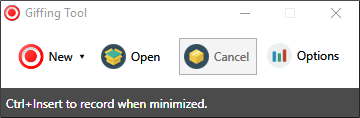
When you are ready, start up (in this instance) Giffing Tool and a window as above will appear. Click on New and a rectangle will appear which can be sized to the area of the screen you want to record. Hold down the left mouse button and drag to create the area to be captured. Once the left mouse button is released Giffing Tool will start recording. To stop recording hit the Esc key on the keyboard.


It may take a little while for Giffing Tool to load the recorded gif, but it will eventually look something like the image above. The important areas have been highlighted in different colours.

The yellow area shows the play/stop/rewind controls.

After recording your SL cube the resulting gif will probably contain far too many frames to make it practical to use as a favicon. The area highlighted in red shows the tool for removing frames. A typical use would be to remove every other frame from the entire gif. Ideally the maximum number of frames should not exeed 60. Also, the animated gif should not exceed 100kb if its to be used as an animated favicon.

Once frames have been removed from the gif you can test how it looks by using the playback tools. The chances are it will look wrong, but this can be adjusted by changing the frame rate, highlighted in dark blue. Removing frames and adjusting the frame rate can be something of a balancing act.

The next step will be to crop the animated gif to remove any unwanted background space. The more of the gif the logo takes up rather than the background the clearer it will be as a favicon. To remove some of the background, use the crop tool, highlighted in pale blue. Click it and drag it around the area you want to keep. It can be adjusted after you release the mouse button.

The last step is to resize the animation to use as a favicon. The prefered sizes are either 32X32px or 16X16px. Use the area highlighted in purple to resize the animated gif. Before you do so however save a copy of the gif full size in case you want to make other changes later. It is also worth mentioning there is no undo button in Giffing Tool, so saving a number of gifs (with different names so they don't overwrite each other) maybe a good idea.

Finally save the animated gif by clicking on the icon highlighted in green, then name the gif and click OK.

The appearance of the animated gif can be tested by right clicking on the saved gif, selecting  Open With and then choosing your preferred browser from the drop down list.

Adding The Animated Gif To Blogger

Once you are happy with the animated gif you've created its time to add it to blogger as an animated favicon.

1/ Firstly, upload the animated gif to your favourite image hosting website such as Photobucket, then copy the code for direct layouts. Now paste it into Notepad (or similar).

2/ Now paste this code also to Notepad:
<link href='YOUR FAVICON URL HERE' rel='icon' type='image/gif'/>
 3/ replace 'YOUR FAVICON URL HERE' with the direct layout code, keeping the quotation marks, then copy the entire line of code you just edited.


 4/ Go to the Blogger Dashboard and select the template option. Make a backup of your template just to be safe.Then click on the Edit HTML button.

5/ Just below the Meta content tags towards the top of the template paste the favicon code, then click the Save Template button. Your animated favicon should now be visible in your browser when you next view your blog. Thats all there is to creating an animated favicon for your blog!


Extra Information


A rotating cube is not the only possibility for an animated favicon as the above gif demonstrates. If this is something you would like to explore, then you'd need to look at other software options.

One reasonably priced option is  Xara 3D Maker which after a cursory look seems good value. However, if all you want to create is one animated gif, it might not be too economical.

A very good website that allows you to create animated favicons online is conveniently called Animatedfavicon.com. It won't create an animation as stylish as the one above but it will allow users to upload a logo that will be transformed into a favicon with scrolling text. Follow the onscreen instructions to create the favicon then scroll down to the 'Get it now' button to download.

The animated gif will be downloaded as a zip file. Once its been uncompressed look for the gif file in the folder, then add it to your favourite image hosting site. Then use the direct layout code as described above.

If you would like a personalised animated favicon created especially for you and your blog then feel free to contact me and I will be happy to discuss what you would like. But for those who would prefer to get creative, enjoy adding your own favicon inspirations to your blogs.
Read More