Lusus

How to Create Isometric Images In Gimp


Isometric images have lots of uses, from architectural drawings, logo designs, game graphics and of course isometric art. Whilst Gimp is a tremendous tool for any visual artist, one of its drawbacks is it doesn't have an isometric grid. However, this tutorial will show you how to work around that and then how to create a basic isometric cube.

The work around  is quite straightforward. It involves installing two Gimp pattern files that will be used to form isometric grids, and then installing a plugin that will allow you to scale the isometric grids to suit your project.


There is also a video version of this tutorial on the SL Inspiration channel on YouTube


Grab the free zipped folder containing the plugin and pattern files from Gumroad here. Scroll, then add zero for price and hit the 'I want this button'


About The Plugin 

Credit for the pattern scale plugin that we use here must go to Rob A who created it.

Installing The Gimp Pattern Files And Plugin


The two images above show what we'll be installing to create the isometric grid patterns.

1/ Firstly download this zipped file containing the Gimp pattern files and the pattern scale plugin by clicking the arrow to the top right of the download page. The file is stored on Google Drive so you can be sure it doesn't contain anything nasty.

Once downloaded unzip the file. If you don't have software that can unzip files try 7zip. Its open scource and a very handy, reliable app.

2/ Open the file you've just unzipped then click the first pattern file, hold down Shift then click the second file so both pattern files are selected.

3/ Right click then from the drop down menu select Copy.

4/ Paste them to the Gimp pattern folder which typically can be found here:

Local Disk (C) > Program Files > Gimp 2 > share >  gimp > 2.0 > patterns


5/  If Gimp is open hit the refresh button to the bottom of the patterns panel, or restart Gimp and the pattern files should be visible. The images are highlighted above.

 6/ To instal the pattern scale plugin go to the downloaded folder, right click on the plugin and select Copy.

7/ Paste it to the Gimp scripts folder, which can usually be found here:

Local Disk (C) > Program Files > Gimp 2 > share > gimp > 2.0 > scripts

8/ Restart Gimp for the plugin to work. You are now ready to create isometric images in Gimp.

Creating An Isometric Grid


Creating an isometric grid is simple.

1/ Start up Gimp, then hit File > New

2/ Create the image size. Now create a transparent layer.

3/ From the pattern tab in the layers panel drag one of the isometric patterns to the image window. You now have an isometric grid.

The first isometric grid is shown above.


And this is the second isometric grid. As you can see its more detailed than the first.

How to Scale The Isometric Grid

To scale either of the grids follow these steps.

1/ Open Gimp and create the image window size as above, then create the transparent layer.


2/ Right click on the grid pattern you want to use and a drop down menu as shown above will appear. Select  Scale Pattern.


3/ The above window will appear. The slider to the top will allow you to scale the grid to anything from 100% to 500%. The window below the slider gives the option to sharpen the grids' appearance. Hit OK when ready.


4/ This window will now open. It allows you to select how much you want the grid sharpened by. Click OK when you're happy with the selection.


5/ The scaled grid will now appear under the patterns tab, highlighted above.


6/ To use the scaled grid drag it from the pattern tab to the Gimp image window.

Creating An Isometric Cube

Creating an isometric cube is the basis for most isometric images, and the following steps will show how to do this.


1/ Create a transparent layer for the first side of the cube. Then with the Rectangle Select tool, drag out a rectangle roughly the width and height of the cube side.


2/ Select the bucket fill tool and click inside the rectangle to fill with colour. Then hit Select > None.

3/ Now select Layer > Autocrop Layer, which will make the layer easier to work with.


4/ From the tools panel select the perspective tool, and the window above will open. A dotted outline around the shape we just created will appear. Drag the Perspective window to one side as we need to work with our shape.


5/ Grab a corner of the dotted outline and drag it so our shape matches points on the grid. The idea is to get the coloured rectangle we created to form a cube side, as in the image above. This is much easier to do if you  hit View > Zoom > Zoom in as it allows for greater accuracy.

6/ If you need to you can again position the corners of the shape by repeating the above step. When you're ready click Transform in the Perspective window.


7/ Follow steps 1-6 above to create the second side of the cube. Using a different colour helps to form the illusion of depth to the isometric cube.


8/ To create the bottom of the cube we'll use the Paths tool, highlighted in the Toobox panel, above.

9/ Create a new layer for the cube bottom. Using the grid as a guide, with the Paths tool create a shape that will form the cube face. At each corner of the shape click to change direction (which will create an anchor for the path). The last click should close the shape.

We don't need to be accurate with the sides that meet the other two cube faces, so long as the shape overlaps them (see the image below).

Once the shape is created with the Paths tool, you can go back and reposition the path anchors by dragging them. Again zooming in will give more accuracy.


10/ With the Paths tool still selected hit Selection from Path in the lower part of the Tools panel. The shape you created will now have a 'marching ants' outline.


11/ Use the Bucket Fill tool to fill the path.


12/ Move the bottom of the cube layer below the sides layers and you have created an isometric cube.

Once the pattern files and plugin are installed creating isometric images and designs becomes very straightfoward in Gimp. If there's one drawback its that the isometric grid has no 'snap to function', but this is easily compensated for by using the zoom in function. Enjoy using Gimp to create your own isometric designs and illustrations.

Below is a video version of this tutorial. if you prefer you can watch it here on YouTube.

Read More
Lusus

Christmas Jigsaw Puzzle 2017


This year's Christmas jigsaw puzzle image comes from The Pulse, a club in Second Life owned by Anna and Gus Flannegan. Anna has done a wonderful job once more in setting up the club for the festive season, and if you would like to see it for yourself, simply follow the link above. The club offers spaces to explore, as well as providing some very photogenic areas. You can even catch me DJ-ing there (check the calendar here for times). To find out more 'like' and follow the Pulse Facebook page and keep up with what is happening there each day.

You can choose to play this jigsaw puzzle either on this page, or you can click the link below to download your own free copy to keep . If you choose to download the puzzle you will of course be able to solve it offline and at your own leisure. The downloadable version is a tad more difficult and comes with a festive tune to listen to as you solve it. The download is stored on Google Drive so you can be sure there's no nasty things included with it. Whichever you decide to do, enjoy your jigsaw puzzle, and have a very Merry Christmas from everyone at The Pulse and Lusus-art!

Download your free jigsaw puzzle here.

Read More
Lusus

How To Improve The Quality Of Sound From Your Mic


Almost anyone who has been to a club in Second Life would have experienced a DJ or live performer who could hardly be heard on mic, or their mic quality was just generally poor. As this can be very off putting for listeners, this tutorial will offer a few tips on how to improve the quality of sound from a mic.

So long as you have a reasonable mic (not necassarily a high quality one), this tutorial should have something useful for you.

Although this tutorial is primarily aimed at Second Life DJs there is something here for anyone who uses a mic, including all online DJs, Skype users and anyone doing video voice overs.

There is also a video version of this tutorial on our new YouTube channel, or you can view the video at the bottom of this page.

Windows Settings

 The first thing to do is check Windows mic settings. To do this follow these simple steps.


1/ In the systems tray to the lower right of the screen is the sound icon. Left click on it and a small window similar to the above will appear. Select Recording Devices.


2/ The above window will now appear where you should see the active mic under the Recording tab, (assuming its connected to your PC). The blue bar to the right of the window shows its active. Double click on the mic icon.


3/ In the new window that opens select the Levels tab.

The first sliding setting adjusts the microphone volume. Here its set to 100%.

The second slider will boost the output of the mic. Here its set to 10dB, but the other two options are 20dB and 30dB. To find out what is the best setting for your mic, you'll have to experiement a little.

When you're ready click OK and the settings will be saved.

VoiceMeeter


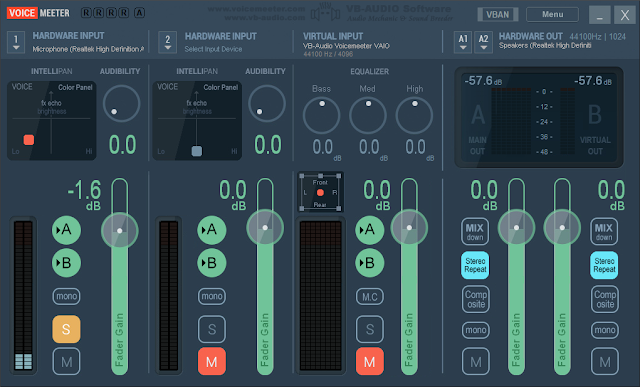
 VoiceMeeter is a great little application that is pay what you want (or free if you don't want to donate), that is easy to install and set up, and can make a big difference to the quality of sound from your mic. Once its downloaded and installed on your PC, reboot to complete the set up. Now open VoicMeeter to configure it for your mic.


1/ Under Hardware Out to the top right of VoiceMeeter select the A1 tab and a drop down window will appear, similar to the above. Select the audio output you use for your PC, with the MME option. In the above image MME: Speakers (Realtek High Definition) has been selected since its the default on my PC.


2/ Under Hardware Input to the top left, select the microphone settings. Two microphones can be connected but we're just going to add one, so click the first drop down tab, (highlighted in red, above), then select the default microphone input for your PC.

Unlike the output settings, here we'll select the WDM option, so my microphone setting becomes WDM: Microphone (Realtek High Definition).


3/ Now that the mic is connected to VoiceMeeter, the sound output can be configured. Towards the lower left (highlighted in blue), M is mute so make sure you uncheck that.

Uncheck A (highlighted in yellow) so you can't hear yourself on mic immediately through your speakers or headphones, and leave B checked. You will now only hear what is said on mic when it has been streamed (i.e, you'll hear what you say on mic when others hears it).

The area highlighted in red is where the sound output of the mic can be manipulated. Grab the orange square and drag it to different parts of the darker area to see how it affects the mic output. The two most useful areas will likely be the lower right and the lower left.

The position of the orange square shows the setting I chose for my mic. To help demonstrate what VoiceMeeter can do, the first audio clip below shows what my mic usually sounds like, and the second is what my mic sounds like with VoiceMeeter.

Mic without VoiceMeeter


Mic with VoiceMeeter

Connecting VoiceMeeter to Streaming Software


All streaming software will configure VoiceMeeter differently, but the basics will be the same. Essentially you'll need to find where your mic connects to the software and replace it with VoiceMeeter.

The above image shows VoiceMeeter connected to Mixxx. Here is how it was added:

1/ Under Options > Preferences select Sound Hardware.

2/ Towards the bottom of the window click the Input tab.

3/ Under Microphone 1 select VoiceMeeter from the drop down list, then click OK.

After setting it up with your DJ software don't forget to start up VoiceMeeter before you start streaming.

If you need to improve the sound quality of your mic, checking the Window settings will be a good first step. Following that, installing VoiceMeeter should also give your mic a boost, and should help to make using your mic a much better experience for both you and your listeners.

Read More
Lusus

Adding Text To A Path With Inkscape


If you need to create a graphic with text that follows a path, Inkscape is a  good choice of software to use. Although the same effect can be achieved with for example Gimp, the results are not always satisfactory as the letters can become distorted. Creating the image in Inkscape avoids this and also allows you to export the finished vector in any size you like without affecting the quality.

To follow this tutorial you'll need some understanding of the layout of Inkscape and its tools, although where convenient to do so these are explained in the hope that following this tutorial is made as easy as possible.

There is also a video version of this tutorial on our YouTube channel, or you can watch the video at the bottom of this page.

Adding Text To A Path

1/ Open Inkscape and hit the 5 key on your keyboard so the page fits the workspace.


2/ Select the Ellipse tool, hold down the Ctrl key on your keyboard, and drag your mouse to create a perfect circle.


3/ If the circle is a solid colour, you can remove the fill by selecting the Fill tab to the right of the Inkscape window and hitting the X option.


If removing the fill colour leaves the circle looking completely blank then a stroke colour needs to be added. To do this, hold down Shift and select a colour from the palette to the bottom of the Inkscape window. See image above.


4/ Select the Text tool to the left and type out your text, as in the image above.


5/ Whilst the Text tool is still active, the font style can be selected from the top left of the Inkscape screen (hightlighted in red), and the font size can be selected in the area highlighted in green.

The font size can also be changed by simply selecting the text with the selection tool, grabbing a corner arrow, and dragging it.


6/ Another way of manipulating text is to click on the Text icon from the menu (highlighted in red, above). The panel below will appear to the right of the Inkscape screen.


7/ Using the Text Panel is self explanatory, and the areas where the font and text size can be selected are clearly visible.


8/ With the Selection Tool (the first tool option on the left vertical menu), select the text, then hold down the Shift key and select the circle. Both items should now be selected.


9/ Now select from the top menu, Text > Put on Path and your text will be added to the path of the circle, as in the image above.

Adjusting The Text On The Path

Although the text is on the path of the circle, if the text were to be selected and moved, it would not stay on the path. If we want to position the text where we want it on the path, we will need to follow the steps below.


10/  Select the circle then select Edit > Duplicate. Now hold down  Ctrl+Shift and drag the duplicate circle to the centre of the original. This new circle needs to be very small to mark the centre of the large circle.

Holding down both Ctrl and Shift means the circle will keep the same centre as the original circle. If just Ctrl is held, the new circle will not keep to the first circle's centre.


12/ Click on the text twice so the rotation arrows are visible. They will appear curved at the boundary of the text.


13/ The text will have a crosshair at its centre. Drag it into the small circle we placed at the centre of the larger circle.


14/ The crosshair is now placed at the centre of the circle, so if we now grab one of the text's rotation arrows, the text will follow the path of the circle and we can position it where we want it.

Adding Text To The Interior Path Of The Circle

When we add text to a circular path it will by default be added to the outer path of the circle. However, there is a way to add text to the interior path.

In this example we're going demonstrate how to do this by developing the above image into a basic logo.


15/  First duplicate the circle. then hold down Ctrl+Shift and drag the circle until it just touches the top of the text.


16/ Follow steps 2-13 above so that the text is added to the path of the circle we just created, and the text's crosshair has been placed into the small circle..


17/ Select the text and hold down the Shift key. Now select the circle, then hit the Invert icon on the top menu (highlighted in red above).


18/ The text should move to the interior path of the circle.


19/ When the text moves to the inner path, the crosshair will move away from the centre (highlighted above). Just drag it back to the centre of the circle and the text can then be positioned where you want it with the rotation arrows.

Adjusting The Texts' Spacing


20/ When the text is added to the path its spacing may be affected. To fix this select the text then hold down the Alt key. Now place the cursor between the letters, then use the keyboards' left and right arrow keys to adjust their spacing. Compare the image above to the previous image to see how spacing can make a difference.


21/ Because the text relies on the circles' paths to remain circular we can't delete them. However, they can be hidden. Select one of the circles, then to the right of the Inkscape window select the Stroke Paint tab. Now hit the X option. This won't remove the circle's path, it just removes its colour. Repeat for the other circle.


22/ The tiny circle we used as a guide is no longer needed, so select and delete it.


23/ This is what the text looks like with both circles hidden and the centre guide removed.


24/ To finish off the logo an inner and outer circle have been added to frame the text. In fact these circles were created by duplicating the circles we used as paths, just before they were hidden.

The stroke paths of each circle was increased to around 3px and positioned so there's a space between them and the text.

The image at the top of this page shows how this basic logo has been reworked to make it a little more appealling, and gives some idea how once text has been added to a path it can be further enhanced.

Read More
Lusus

How To Save A Second Life Music Stream To A Media Player.


This tutorial came about after following the example of  SL resident Captain A-Jay who listens to Second Life music streams via an external media player, namely the excellent and free VLC. After trying this it became clear that music quality was much improved compared to listening through the SL viewer.

However there was one small problem. If you look at the url of a Second Life stream it is clear its not easy to match it to a DJ, so picking the correct stream in VLC to listen to can be a challenge. Hence the purpose of this tutorial is to show a way to save a stream in VLC so that it has an identifying name.

After this we'll show another way of saving and listening to a Second Life stream by using MusicBee, which is another excellent and free music software package.


Alternatively, you can just scroll down to the bottom of this page to learn how to download a small clickable file that will automatically open a Second Life stream in VLC. You can also grab the file for my stream too.

If you prefer, you can watch a video of this tutorial on our YouTube channel, or you can view the video at the bottom of this page.

Copying A Stream Url From Second Life

Before you can listen to a Second Life music stream in a media player you need the stream url. To get it follow these steps.


1/ Assuming you're already at the location where the stream is playing click on the 'i' icon at the beginning of the location address at the top of the viewer. This will open the Place Profile window, shown above.


2/ Click on the About Land button and the above window will open. Select the Sound tab. Drag your cursor over the music url, right click and select Copy from the drop down list. Keep it somewhere safe as we'll need it later.

Some locations in Second Life won't allow visitors to copy the music url, in which case you can ask the DJ if he can share the stream url with you. Most DJs will be happy to do this, although it may be a good idea to tell them why you want it.

For anyone interested this is my stream Url: http://radiolinden.com:10130

Adding The Music Url To VLC


1/ In VLC select Media > Open Network Stream as in the image above.


2/ In the window that opens paste the music url from Second Life. Then hit the Play button.


3/ Now select Media> Save Playlist to File.


4/ Navigate to where you want to save the playlist file then give it an identifying name. The playlist is of course the music url from Second Life so I've named it after the DJ. Now click Save.


5/ To start playing the stream in VLC select Media > Open file, and if necassary navigate to the folder with the file you just saved. Double click on the file to open and listen to it in VLC.
 
Alternatively, go directly to the folder and double click on the file. This will open the it in VLC, and so long as the DJ is streaming, you'll be able to listen to them.

MusicBee

Another easy way to save and play Second Life streams is to use MusicBee. Like VLC, MusicBee is an excellent media player, but it is much more than that. You can use it to sort your music files into playlists, organise them by genre, and basically use it as a database to manage and play all of your music.

Unlike VLC which can also play movie files, MusicBee is focused entirely on music including internet radio stations, and it is this feature that can be used to add and name music streams from Second Life. Follow these steps to do just that.


1/ MusicBee is quite complex with many different looks and ways to configure it, so when you first start it up, it may look different than above. Don't worry about that though, just click on the Radio tab near the top of the window.


2/ Now click on Radio towards the top left and from the drop down menu select New Station.


3/ The small window shown above will open where you can add the stream details, the most important of course being the url and an identifying name. As you can see I have also added an image for the stream and I've called the genre Second Life so I know its the stream of an SL DJ.

Click Save, and the stream has been added to MusicBee.


4/ The above image shows the music stream and name. If more url streams were added they would form a list. To select a stream simply double click on it. Once you're connected, details of the current song and (quite often) a related image will be shown to the right.

Using A Script To Open A Music Stream In VLC


If you're a DJ in Second Life and want to allow people who cannot make it to your set to listen to your stream, you can either pass on the Url as outlined above, or give them a link that will download a small script. This script will save them the trouble of loading the Url into VLC.


1/ Many stream pages will look something like the above. Right click on the Listen link then select Copy Link.


2/ Paste the link to a webpage, maybe a blog or social media post.


3/ When the link is clicked a small script will download. Double click the file and VLC will automatically open and play the music stream. 


It should be noted that when a stream is offline and the file is double clicked, VLC will open and an error message will appear. The stream has to be up and running for the file to work.


If you, or anyone you share the download link with is concerned about the safetly of the file, then this website called Virus Total can be used to check for malicious content. These downloads are 100% safe, but its good to offer reassurance.


To download the file for my music stream click here, and look out for notices on social media for when DJ Lusus (ie, me) is playing.


Thats all there is to adding streams from Second Life to either VLC or MusicBee. Have fun trying out both and see which you prefer. 

Read More
Lusus

How To Add A Default Export Or Save Folder in Gimp


Gimp is a remarkable open source graphics tool but there is one feature that some users find frustrating and clumsy. Whenever you want to take an image out of Gimp it will open a default folder for the image to be exported or saved to. It can be tedious continually navigating away from this folder to the location you would prefer to export to, but there is a way around this. Follow this short tutorial and you will be able to add folders to the export window for quick  and easy access.

1/  When you have finished manipulating the image in Gimp select File > Export As (Shift+Ctrl+E) and the export window will open.

2/  Navigate to the folder you prefer to export images to and select it from the list in the middle of the export window (an example is highlighted in blue, above).

3/ Now click the '+' icon to the lower left of the export window to bookmark the folder highlighted in red).


Once you've hit the '+' icon the folder will be added to the left of the export window (highlighted in green, above). Although Gimp won't automatically open this folder the next time you want to export or save a file, it will now be easily available. All you'll need to do is click the folder to export to it.

This is a simple tip to make exporting images and saving Gimp files much easier and will hopefully save you time navigating to your preferred folders. If you export or save files to more than one folder, you can repeat this process for each folder you use, and they will all be listed to the left of the export window.
Read More